Los códigos QR se han convertido en omnipresentes en los últimos años, ofreciendo una forma rápida y cómoda de acceder a información, sitios web y servicios con sólo escanearlos. De hecho, puedes utilizar fácilmente un QR code generator para diseñar rápidamente un código QR y uti
Los códigos QR se han convertido en omnipresentes en los últimos años, ofreciendo una forma rápida y cómoda de acceder a información, sitios web y servicios con sólo escanearlos. De hecho, puedes utilizar fácilmente un QR code generator para diseñar rápidamente un código QR y utilizarlo para casi cualquier cosa.
Whether you're looking to view a restaurant menu, make a payment, or download an app, knowing how to create and scan a QR code can save you time and hassle.
This quick guide will walk you through the steps to scan QR codes on various devices, including smartphones, tablets, and computers, ensuring you're equipped with the know-how to use these handy digital tools. Let's dive in!
Qué hay que saber para escanear un código QR
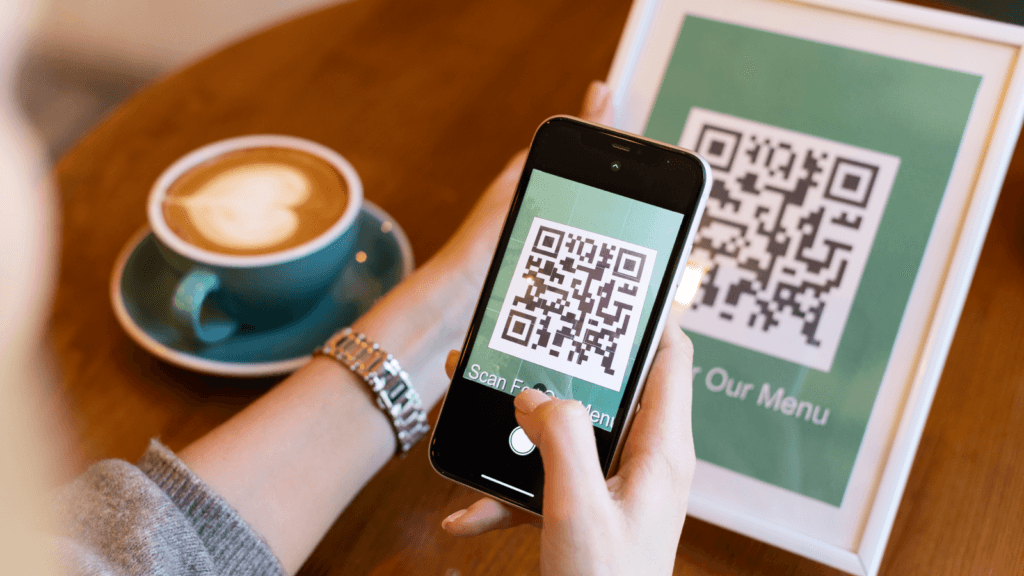
Escanear un código QR es un proceso sencillo, pero hay algunas cosas clave que hay que saber para garantizar una experiencia sin problemas. En primer lugar, algunos consejos:
- Clean your camera: Make sure your device's camera is clean and functioning properly, as smudges or damage can interfere with the scan.
- Connect to the internet: Some QR codes may require an active internet connection to access the content they link to, so ensure you're connected to Wi-Fi or have mobile data enabled.
- Elija una empresa de confianza aplicaciones de escáner: Si utilizas una aplicación para escanear códigos QR, elige una que tenga buena reputación y provenga de una fuente de confianza.
- Be careful with unknown QR codes: If you're not sure where a QR code comes from or if it looks sketchy, it's better not to scan it until you've confirmed its source is safe.
By keeping these tips in mind, you'll be ready to scan QR codes efficiently and effectively.
1. Escanear un código QR en un iPhone o Android
Uso de la aplicación Cámara
- Abre la aplicación Cámara desde la pantalla de inicio, el Centro de control o la pantalla de bloqueo.
- Selecciona la cámara trasera y sujeta el dispositivo para que el código QR aparezca en el visor.
- Tu dispositivo reconocerá el código QR y mostrará una notificación.
- Toca la notificación para abrir el enlace asociado al código QR.
Utilizar una aplicación de terceros
- Descargar un escáner de códigos QR de la App Store
- Abre la aplicación y permite que acceda a tu cámara.
- Apunta con la cámara al código QR y espera a que la aplicación lo reconozca.
- Siga las instrucciones para ver el contenido.
2. Escanear un código QR en una tableta
The process for scanning a QR code on a tablet is similar to that of smartphones. Use the default camera app or download a QR code scanner app from your device's app store and follow the steps outlined above.
3. Escanear códigos QR en Windows y Mac
If you're using a Windows or Mac computer, you can easily scan QR codes with your webcam.
- Abrir WebQR in your browser. Since Macs don't have a built-in QR code scanner, you'll need a website like this to scan using your PC or Mac's webcam.
- Si el navegador te lo pide, asegúrate de conceder al sitio web acceso a tu cámara.
- Coloca el código QR frente a la cámara del PC. El código debería aparecer en la ventana de escaneado de la página web.
- Asegúrese de que los cuatro bordes y esquinas del código QR están dentro de la ventana de escaneado.
- Once the camera focuses, the QR code's content will appear in a box at the bottom of the page. You can click on the content to open it.
- Alternatively, upload a QR code by clicking the camera icon above the scan window, choosing the file, and clicking "Open."
5 consejos para solucionar problemas comunes de escaneado de códigos QR
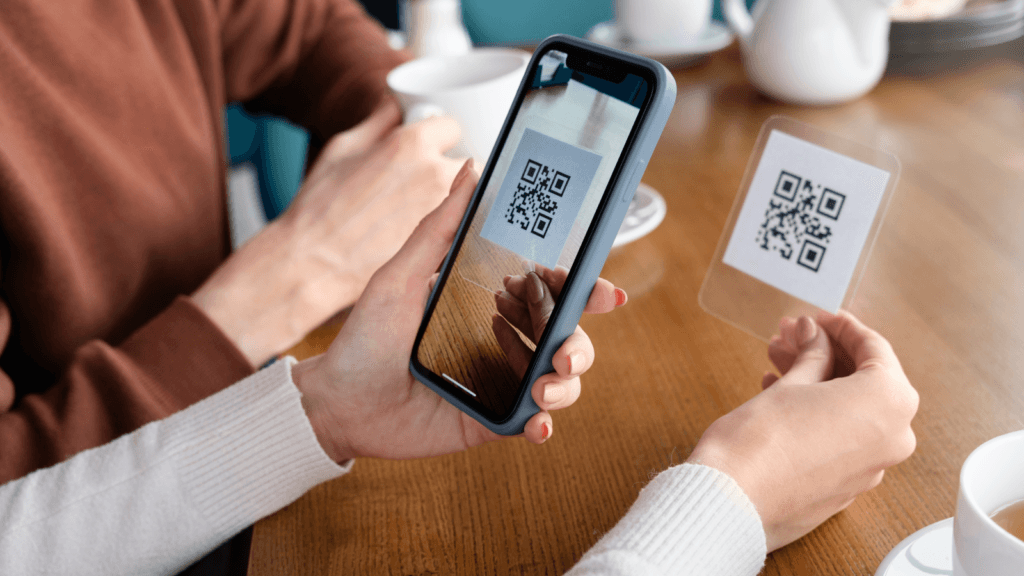
Escanear códigos QR with an iPhone usually goes smoothly, but sometimes you might run into problems or find that you can't scan a QR code at all. If this happens, here are some steps to help fix common issues when trying to scan a QR code with your iPhone:
Conceder acceso a la cámara
With the camera app's access to your device's camera being crucial, head over to your iPhone's Settings. From there, tap on the Camera app and make sure the Camera permission is turned on.
Limpie su cámara
Para obtener un escaneado más nítido, ayuda que el objetivo de la cámara esté limpio. La suciedad o las manchas pueden afectar a la calidad del escaneado. Limpia suavemente la lente con un paño suave o un limpiador específico antes de volver a escanear.
Asegúrate de que haya mucha luz
Además de asegurarte de que el código QR está bien iluminado y enfocado, si está demasiado oscuro o si la imagen del QR aparece borrosa, es posible que el teléfono no lo capte correctamente. Intenta moverte a un lugar más luminoso y comprueba que todo se ve nítido antes de volver a intentarlo.
Reiniciar el teléfono
Restarting your iPhone may help reset any glitches affecting your device. To do this, hold down the power button until "slide off" is displayed on the screen. Power off your device and turn it back on.
Actualice su dispositivo
Por último, mantener el software actualizado garantiza la instalación de las últimas mejoras y funcionalidades en el dispositivo, lo que puede resolver cualquier problema.
Aplicaciones para escanear códigos QR
Most of the time, your phone's camera app can scan QR codes just fine. But sometimes, you might have a need for a aplicación especial para escanear códigos QR.
If you're looking around on the Google Play Store or the App Store for one, here are some good ones:
- Lector de códigos QR de Scan
- Lector y escáner de códigos QR de Kaspersky Lab
- Lector de códigos QR de Gamma Play
- QR Scanner de Avira
- Lector de códigos QR por QR Code Scanner & Generator
Consejos de seguridad al escanear códigos QR

Scanning QR codes is super handy for getting info or doing stuff quickly, but it's key to stay safe and know the risks. Here are some tips on how to scan QR codes without running into trouble:
- Verify the source: Only scan QR codes from trusted sources to avoid phishing scams or malware. If a QR code looks off or comes from a place you're not sure about, it's better not to scan it.
- Previsualizar la URL: Algunos escáneres QR permiten previsualizar la URL antes de abrirla. Utiliza esta función para comprobar si hay enlaces sospechosos.
- Keep your device updated: Ensure your device's operating system and security software are up to date.
- Utilice una aplicación de seguridad: Considera el uso de una aplicación de seguridad móvil que pueda escanear códigos QR en busca de contenido malicioso.
Permanecer alerta y prestar atención a estas señales te ayudará a mantener tu vida digital a salvo de los peligros que acechan tras los códigos QR maliciosos.
Preguntas frecuentes
¿Pueden los códigos QR dirigirle a sitios con malware?
Sure, QR codes might lead you to harmful websites if they're made with bad intentions. It's key to be careful when using a QR scanner on codes, especially those from places or people we don't know well. By sticking with trusted QR code scanners or the camera features that come on our phones, we can lower the chances of bumping into nasty surprises hidden in these codes.
¿Cómo puedo escanear un código QR sin una aplicación?
Nowadays, the camera app on most smartphones comes with a built-in QR code scanner. All you have to do is aim your camera at the QR code and it'll scan it without any extra steps. On the off chance that your phone's camera doesn't automatically recognize QR codes, you might need to either update your smartphone or get yourself a separate QR scanner app.
¿Es posible escanear un código QR a partir de una captura de pantalla?
Sí, es posible escanear un código QR a partir de una captura de pantalla. Puedes subir la captura de pantalla a un escáner de códigos QR en línea o utilizar una aplicación de escaneo de códigos QR que te permita escanear imágenes de tu biblioteca de fotos.
What If My Phone Can't Read QR Codes?
Si tu teléfono no puede escanear un código QR por alguna razón, aquí tienes una serie de pasos que puedes seguir para resolver el problema:
- Actualiza el software de tu teléfono y obtén la versión más reciente de la aplicación de la cámara.
- Descarga un escáner QR de confianza.
- Asegúrate de que nada bloquea o ensucia el objetivo de tu cámara.
- Reinicia el dispositivo.
- Asegúrate de que estás conectado a Internet.
Conclusión
Scanning a QR code is a simple and convenient way to access information quickly. Whether you're using an iPhone, Android device, or computer, following the steps outlined in this guide will ensure a smooth and secure scanning experience. Remember to stay vigilant about the sources of QR codes and keep your device and apps updated for the best performance.
By following these tips and best practices, you'll be well-equipped to scan QR codes safely and effectively, making the most out of this versatile technology.
¿Listo para crear tu propio código QR? Pruebe nuestro generador gratuito de códigos QR ¡ahora y lleve su marketing al siguiente nivel!