Last updated July 23, 2026
With 230 million users in the US alone, LinkedIn is a powerful platform for networking and building professional relationships, and QR codes make it even easier to connect. By sharing a scannable LinkedIn QR code, professionals can quickly exchange profiles at networking events, conferences, or business meetings without needing to type in details.
Learn more about how to create a QR code for LinkedIn using a QR code generator, the benefits, and explore important factors to consider.
How to create a LinkedIn QR code: Step-by-step guide
Step 1: Get your LinkedIn profile URL
Log in to your LinkedIn account and navigate to your profile, from there copy the URL from your browser’s address bar. This will be the link to which your QR code will be directed.
Step 2: Choose a QR code generator
You have a lot of options when it comes to selecting a generator tool, but we suggest Oppizi’s free QR generator which includes tracking and customization options.
Step 3: Input your URL
In the generator tool, paste your LinkedIn profile URL into the designated field.
Step 4: Customize the QR code
Enhance your QR code’s appearance by:
- Adding a custom frame or call-to-action like “Connect on LinkedIn.”
- Choosing colors that align with your personal or professional branding.
- Including your logo to make the code uniquely yours.
Step 5: Generate and test the QR code
Click the “Generate” button to create your QR code. Do a test scan with your smartphone to ensure it leads to your LinkedIn profile.
Step 6: Download and share
Once you’ve downloaded your QR code in your preferred format, add it to your business card, email signature, resumes, presentations, or even print materials for events.
Benefits of using QR codes for LinkedIn
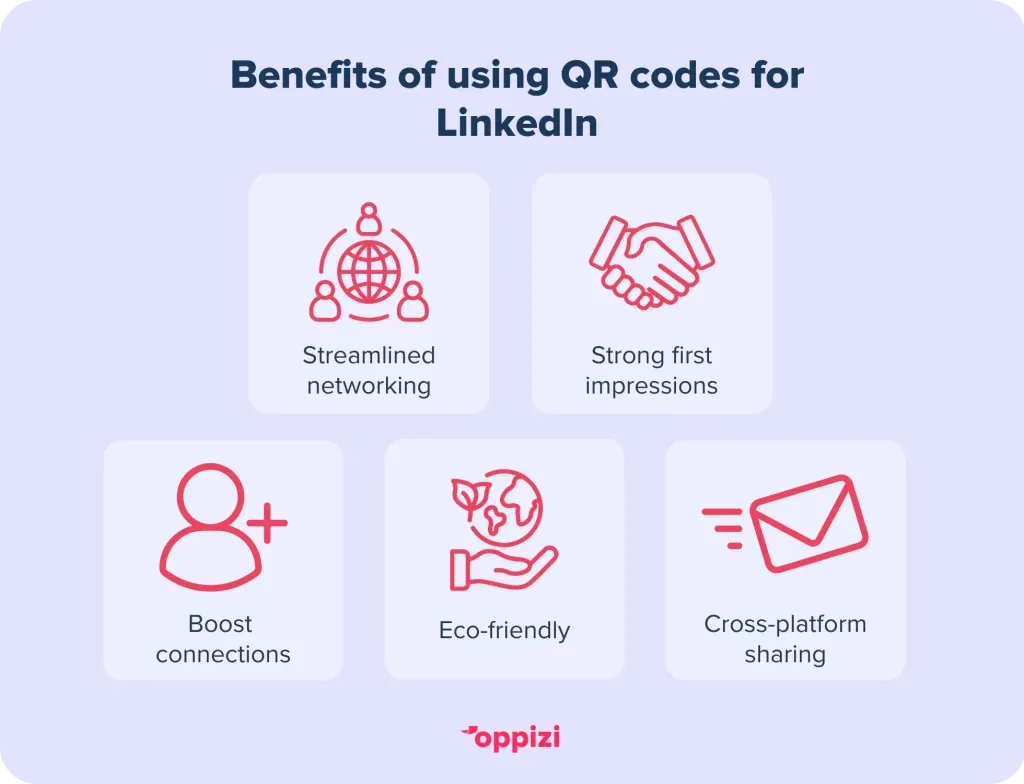
- Streamlined networkingQR codes simplify professional networking by providing instant access to your LinkedIn profile, improving your ability to make new connections.
- Impressive first impressionIncluding a QR code on your resume or business card demonstrates tech-savviness and professionalism, which can leave a lasting impression.
- Increased connectionsEncouraging quick and effortless profile visits can boost your connections and engagement on LinkedIn.
- Eco-friendly alternativeUsing digital profiles via QR codes can reduce the need for printed materials, supporting sustainable practices.
- Cross-platform integrationQR codes can be shared across platforms like email, social media, and printed materials, making them versatile tools for building your network.
Important considerations
- Privacy settingsEnsure your LinkedIn profile is optimized and has the appropriate visibility settings. A private profile may not offer much value when shared via a QR code.
- Testing for functionalityAlways test your QR code before sharing it widely. Check that it works on different devices and apps to avoid technical issues.
- ScannabilityDesign the QR code with high contrast and an appropriate size to ensure easy scanning. Avoid overcrowded designs or low-resolution prints.
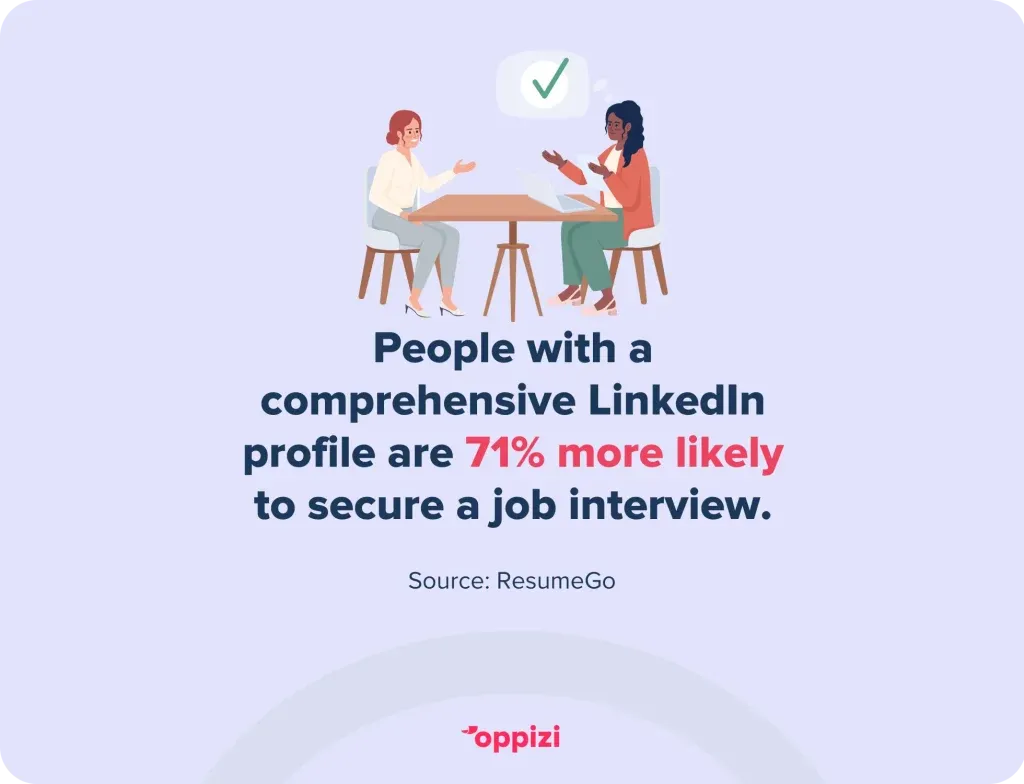
- Updating your profileKeep your LinkedIn profile updated to ensure those who scan your QR code see your most current professional details. Studies have shown that those with a complete LinkedIn profile have a 71% higher chance of securing a job interview.
FAQs about QR codes for LinkedIn
How do I create a QR code for my LinkedIn?
You can use a QR code generator like this one to create a personalized QR code that links directly to your LinkedIn profile, making networking more streamlined.
Where do I put a LinkedIn QR code on my resume?
If you’re adding a QR code for your LinkedIn on your resume, you can add it near your name in the contact information section, or embed it in the footer.
Where do I find my LinkedIn URL?
To find your LinkedIn URL, simply go to your profile and either copy the URL from the section that says “Public profile & URL” or directly from the browser address bar.
Final thoughts
Using QR codes for LinkedIn is an innovative way to enhance professional networking and increase visibility. With tools like Oppizi’s QR code generator, creating personalized, scannable codes is easy and effective. By adding QR codes to your networking strategy, you can build meaningful connections and differentiate yourself in the professional world.Are you ready to take your professional networking to the next level? Get started with our QR code generator today!