Last updated August 28, 2026
QR codes have become a vital tool across many industries, allowing businesses to deliver content, connect with customers, and provide essential information. But they’re not without issues—whether they don’t scan properly, link to incorrect or outdated content, or appear blurry or unresponsive on certain devices.
These QR code problems can disrupt user experience and impact engagement, making it essential to understand how to troubleshoot them effectively.
In this guide, we’ll cover some common QR code issues, why they occur, and provide practical troubleshooting steps to ensure your codes perform reliably. Whether you’re a business owner, marketer, or developer, follow along with us to learn how to improve your QR codes and maintain seamless user interactions.
1. Low-Quality Printing or Image Resolution
If a QR code is blurry, pixelated, or printed in low resolution, scanners may struggle to read it. This issue often occurs when QR codes are resized incorrectly, printed on poor-quality paper, or displayed on low-resolution screens.
Solution
Ensure that your QR code is at least 300 dpi, or dots per inch, when printed. Avoid resizing it in a way that distorts or pixelates it. For digital use, export the QR code as a high-resolution PNG or vector file, like SVG, to maintain clarity at any size.
2. Incorrect QR Code Size
Sizing is an important factor when it comes to QR codes. Too small, and they can’t be read; too large, and users may have difficulty scanning from the right distance. As a general rule, a QR code should be at least 1 x 1 inch, or 2.5 x 2.5 cm, for close-range scanning.
Solution
Adjust the QR code size based on how it will be used. For print materials meant to be scanned at arm’s length, stick to the 1 x 1 inch minimum size. For larger formats like posters, use a bigger QR code to make it easy to scan from further away.
3. Poor Contrast Between QR Code and Background
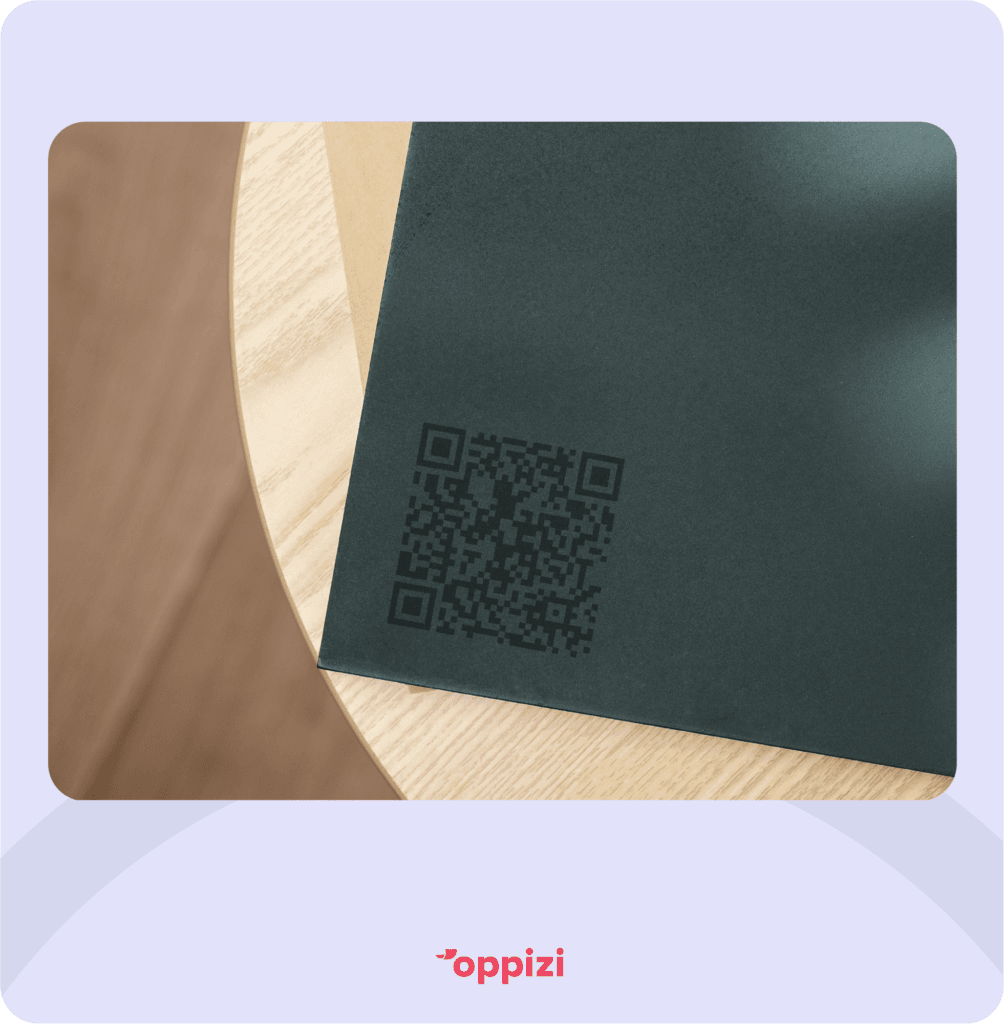
A QR code needs good contrast to be readable. If the code is printed in colors that blend into the background, it won’t be scannable. Black codes on white backgrounds work best, but any dark code on a light background should work as well.
Solution
Use a high-contrast color scheme for the QR code, ideally with a dark code on a light background. Avoid using complex patterns or backgrounds that could interfere with the code’s readability.
4. Damaged or Worn QR Codes
Over time, QR codes printed on physical surfaces may get damaged from scratches, fading, or exposure to the elements. When this happens, parts of the code may be missing or unreadable, rendering it unusable.
Solution
Print QR codes on durable materials, or use protective coverings like laminates or UV-resistant coatings if they’re intended for outdoor use. If a code does get damaged, replace it with a new one to restore functionality.
5. Incorrect Data Formatting or Invalid URL
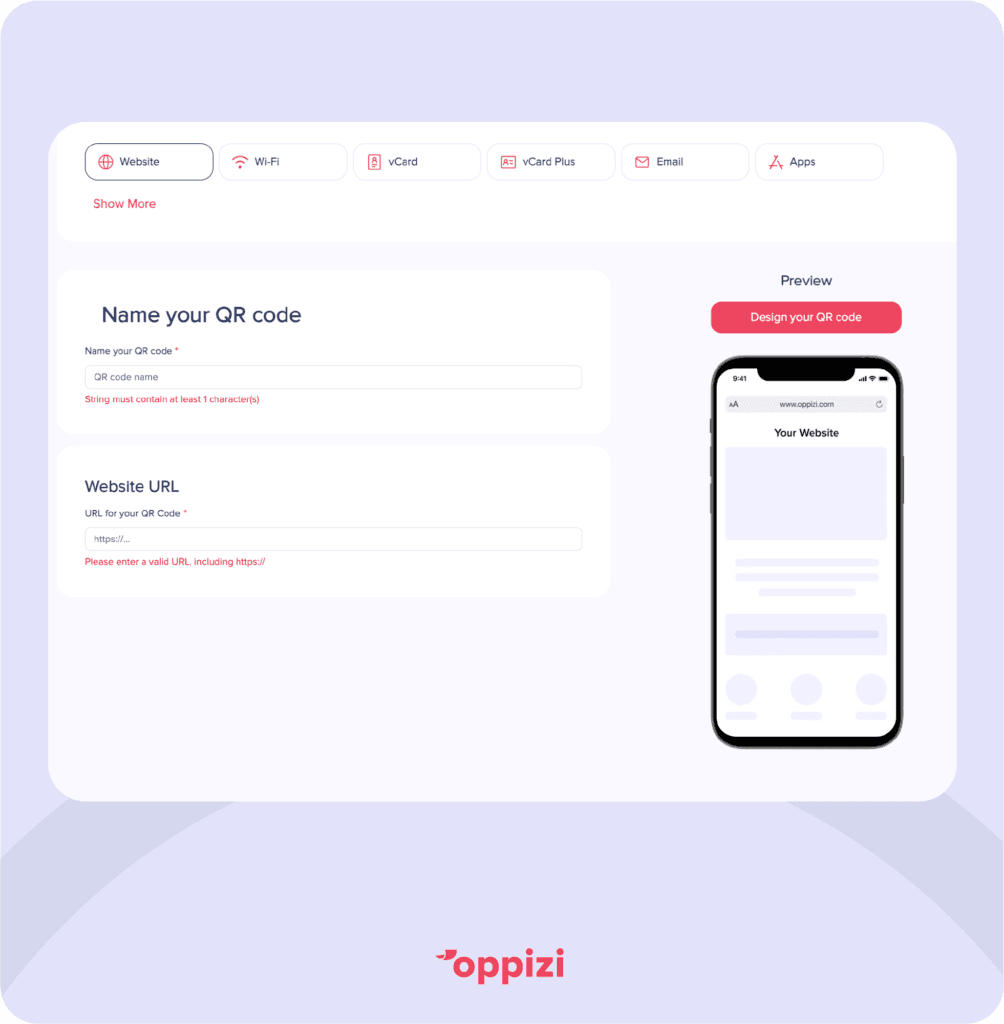
QR codes may not work if the data encoded is in the wrong format or contains typos. This is especially common when linking to URLs that have extra spaces, unsupported characters, or broken links.
Solution
Double-check the data you’re encoding in the QR code. Make sure URLs are valid, email addresses are spelled correctly, and there are no unsupported characters. Test the QR code with different devices to ensure it directs users to the right content.
6. Insufficient Lighting or Glare Issues
Lighting plays a crucial role in QR code scanning. If there’s too much glare, poor lighting, or shadows on the QR code, it may be hard for scanners to read it.
Solution
Place the QR code in a well-lit environment and avoid glossy materials that may cause reflections. For outdoor codes, position them to avoid direct sunlight or use a matte finish to reduce glare.

7. Obstructed or Covered QR Codes
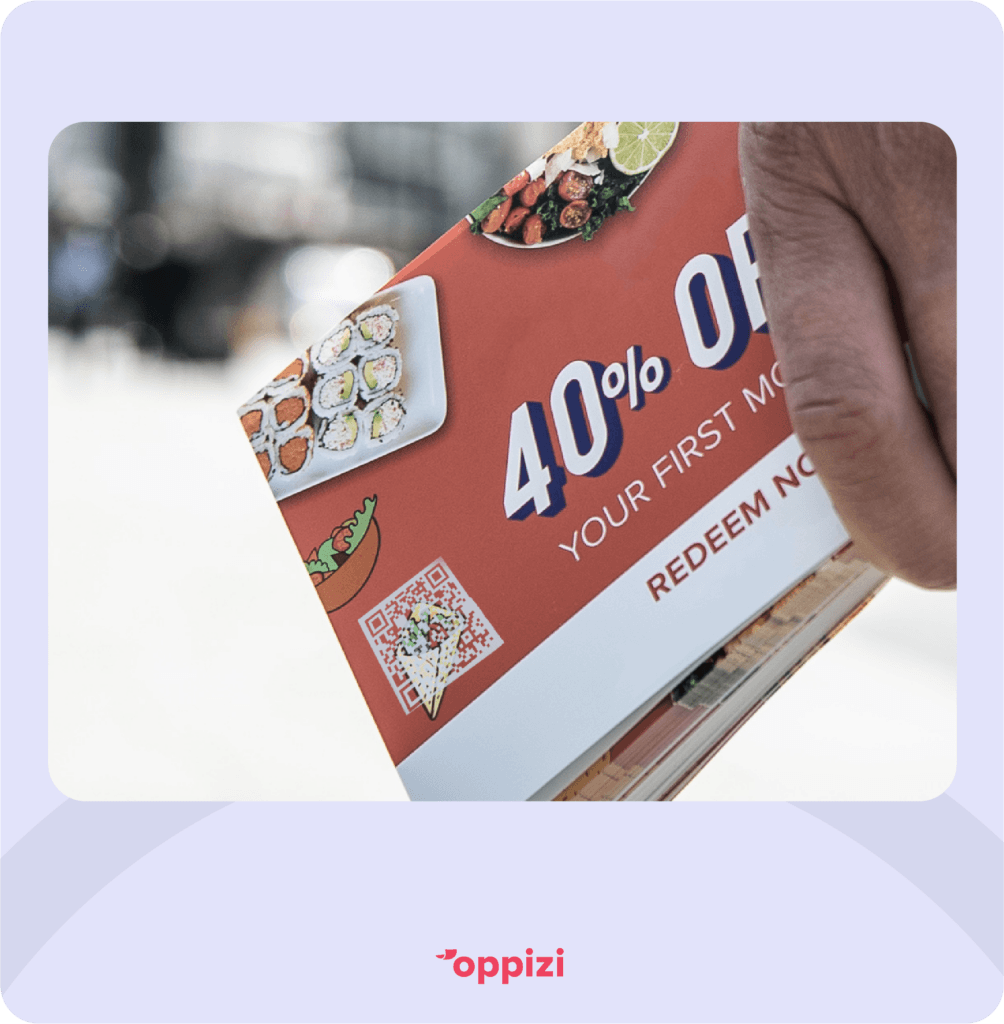
A QR code needs to be fully visible for scanners to detect it properly. If part of the code is obscured by text, logos, or other design elements, it may not scan correctly.
Solution
Keep QR codes clear of other design elements. Ensure that no text, images, or logos overlap with the QR code. If adding a logo within the code, make sure it’s not too large, as overdoing your customization can interfere with readability.
8. Unsupported QR Code Types
Not all QR codes types are supported by all devices or apps. For instance, if a QR code contains specialized data like WiFi credentials or contact information, some devices or outdated apps may not interpret it properly.
Solution
Use widely-supported formats, like URLs, to ensure compatibility. If you’re using a less common format, provide an alternative access method – like a URL or text instruction – in case some users can’t scan the code.
9. Outdated Scanner or Device Issues
Older devices or outdated QR code scanner apps may have trouble reading newer QR code formats or codes with extensive customization.
Solution
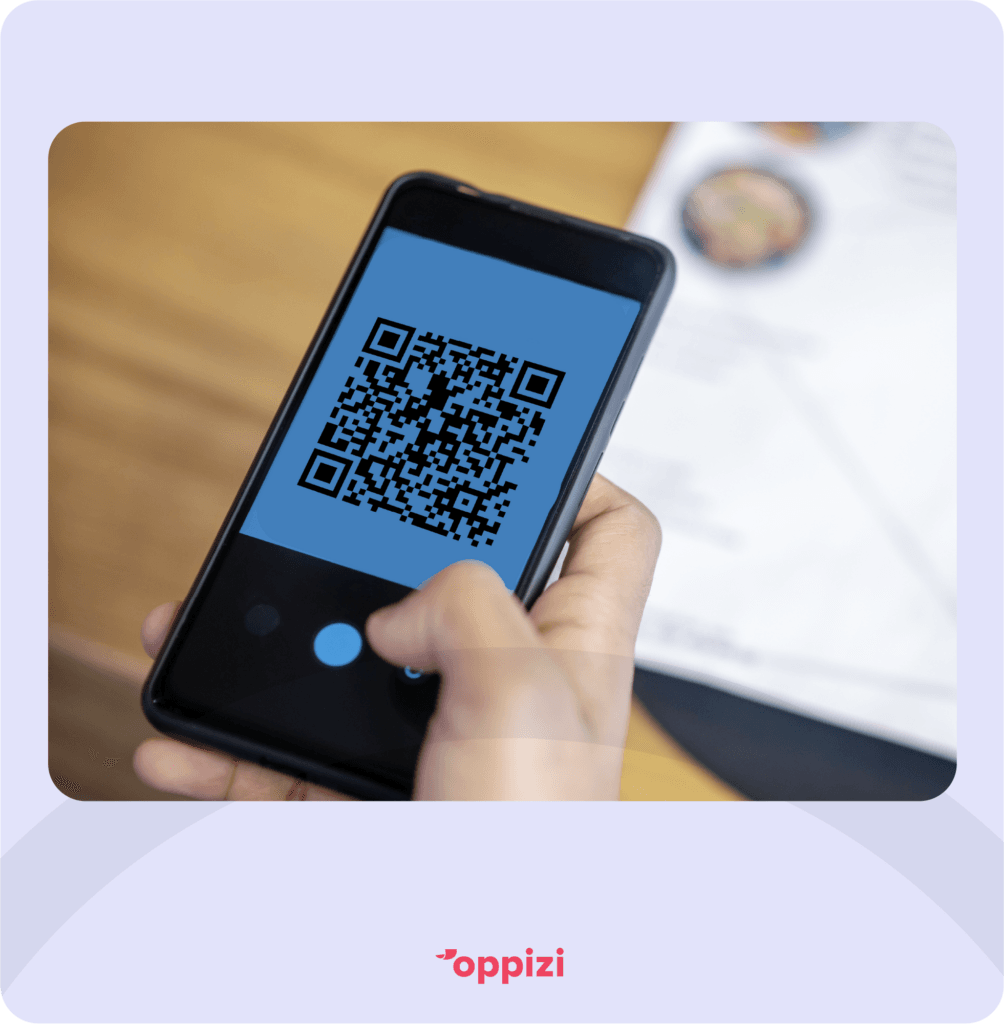
Update to the latest version of your QR code scanner app, or use the built-in scanner on your smartphone. Both iOS and Android devices typically support QR scanning directly through the camera app. If a device isn’t scanning QR codes well, restart it or update the operating system to improve compatibility.
10. Over-Customization of QR Codes
While customizing QR codes with colors and logos is common, excessive alterations can reduce readability. Customizations that disrupt the standard square design, distort patterns, or misplace crucial elements can make the code unreadable.
Solution
Limit your customizations to avoid affecting the basic structure of the QR code. If you add a logo, ensure it’s centered and doesn’t obscure key parts of the code. Test your customized QR code on different devices to confirm it works before printing or sharing it.
3. How Do I Make My QR Code Work Again?
To make a QR code functional again, start by addressing common issues like size, contrast, and data format. Ensure the QR code has high resolution, test it on different devices, and reprint it if necessary. If it’s a digital code, make sure the link or data is still valid, and adjust any other parameters that may be affecting usability.
4. What Makes a QR Code Unreadable?
A QR code becomes unreadable if it’s too small, pixelated, or lacks sufficient contrast with the background. Additionally, damage, over-customization, or incorrect formatting can render it unscannable. Checking these factors and testing the QR code can help ensure readability and avoid problems.
Conclusion
In order to make the most out of QR codes, they need to be created, printed, and displayed carefully to function properly. By addressing issues like low resolution, poor contrast, and inadequate lighting, you can ensure that your QR codes are easily scannable and work as intended.
Always test your QR codes on multiple devices to catch potential issues before they reach your audience. Following the solutions outlined here will help make your QR codes work effectively every time.
Want to integrate QR codes into your marketing strategy? Use Oppizi’s free QR Code Generator and get started today!
Frequently asked questions
- Why Does My QR Code Not Work?
Your QR code might not work due to factors listed above, like low resolution, incorrect data formatting, or poor contrast. Test the code on different devices to see if it’s readable. Ensuring that the QR code is well-contrasted, correctly sized, and formatted can help solve many common problems.
- Why Is My Phone Not Scanning QR Codes?
If your phone isn’t scanning a QR code, it may be due to insufficient lighting, glare, or camera focus. Make sure the camera lens is clean, adjust the distance from the QR code, and check if your phone has the latest updates. Many smartphones can scan QR codes directly through the camera, so try this method or download a third-party QR scanner app if necessary.
- How Do I Make My QR Code Work Again?
To make a QR code functional again, start by addressing common issues like size, contrast, and data format. Ensure the QR code has high resolution, test it on different devices, and reprint it if necessary. If it’s a digital code, make sure the link or data is still valid, and adjust any other parameters that may be affecting usability.
- What Makes a QR Code Unreadable?
A QR code becomes unreadable if it’s too small, pixelated, or lacks sufficient contrast with the background. Additionally, damage, over-customization, or incorrect formatting can render it unscannable. Checking these factors and testing the QR code can help ensure readability and avoid problems.