Last updated August 28, 2026
Scanning a QR code from a picture rather than a physical print can be convenient in situations where the code is on a digital device, like in a screenshot, image, or social media post. But unlike scanning a physical code with a smartphone camera, accessing a digital QR code often requires additional steps or tools that aren’t always intuitive.
Whether you’re trying to access a QR code menu, redeem a promotion, or follow a link, the process can be frustrating without the right guidance.
Here’s a detailed guide on how to scan a QR code from a picture, along with helpful QR code tips and more information to answer your questions about this process.
5 Ways to Scan a QR Code from a Picture
There are multiple ways to scan a QR code from a picture, depending on your device and tools available. Here are five simple and effective methods you can use to access your code:
1. Use Your Device’s QR Code Scanner
Many smartphones have a built-in QR code scanner within the camera app. Open the camera and try scanning a QR code to check if your device can recognize these codes directly from a photo.
2. Use a Photo App with Built-in QR Scanning
If your phone’s camera doesn’t support QR code scanning from an image, open the photo of the QR code in your gallery or photo app. Many gallery apps include an “Analyze” or “Scan” option that can recognize QR codes from inside a photo.
3. Download a Third-Party QR Code Scanner
Another option if your default camera and gallery apps can’t scan from images is to consider downloading a third-party QR code scanner app. Apps like Google Lens, QR Code Reader, and QR Scanner offer the ability to scan QR codes directly from saved images and screenshots.
4. Upload or Select the QR Code Image
In the third-party app, choose the option to upload or scan a photo. Select the image with the QR code, and the app will analyze it, displaying the content or link contained within the code.
5. Tap the Link or Action Prompt
Once the code is recognized, the app will display a prompt with the QR code’s link or action—like opening a webpage or downloading a file, for example. Tap the link to access the QR code content.

Benefits of Scanning a QR Code from a Picture
Curious about the benefits of scanning a QR code from a photo or screenshot? Here’s why it can be incredibly useful.
Convenience
Knowing how to scan codes from a photo allows you to quickly access information from digital sources like screenshots, emails, or social media without needing the physical QR code.
Accessibility
It can also be useful when a printed QR code is damaged or unavailable, ensuring you can still retrieve the information.
Time-Saving
The ability to scan your QR code from a photo helps save time, eliminating the need to manually type links or search for content by directly accessing it from the image.
Versatility
It also enables you to scan different types of QR codes shared in various formats, including PDFs, websites, or shared images from others.
Seamless Sharing
If you need to share QR codes from shared images and photos with others, knowing how to scan a QR code from a photo can make collaboration and information sharing more efficient.
Tips for Scanning QR Codes from a Picture
Now that you’re familiar with the steps for scanning QR codes from a picture, let’s dive into some helpful tips to ensure you can easily access the information behind any digital QR code.
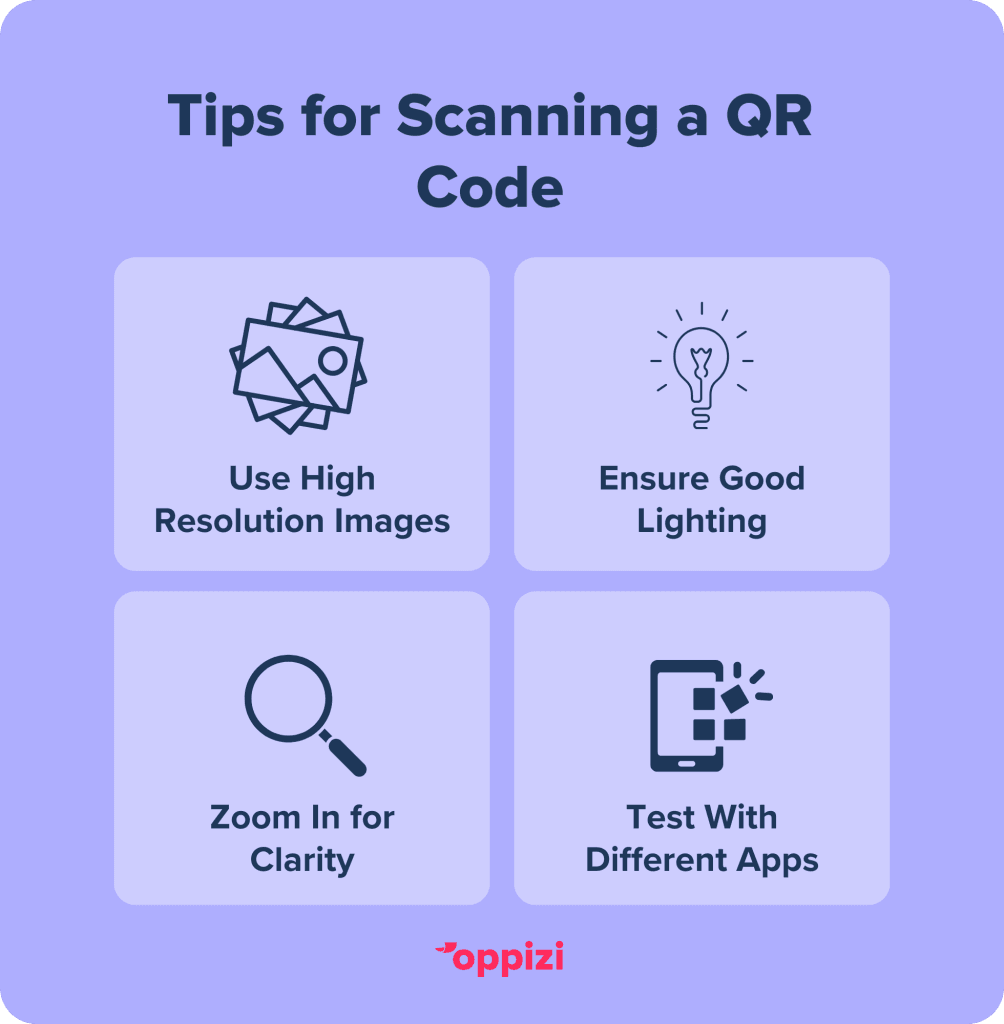
- Use High-Resolution Images: QR codes work best when they’re clear and not pixelated. Make sure your image is high resolution and that the QR code is fully visible.
- Ensure Good Lighting: If you’re using your device’s camera to scan a QR code from another screen, make sure there’s good lighting and minimal glare on the screen.
- Zoom In for Better Clarity: If the QR code appears small in the picture, use the zoom function on your device to ensure the scanner can clearly read the code without losing focus.
- Test with Different Apps: If one app isn’t detecting the QR code, try a different scanner app, as some may work better with specific image types or QR code styles.
Conclusion
Scanning a QR code from a picture is a convenient way to access information directly from an image stored on your phone or device. With the right apps, clear images, and some best practices in mind, you can easily scan QR codes from any saved picture and access the linked content seamlessly.Ready to leverage QR codes in your marketing? Use our free QR code generator to start creating interactive and engaging campaigns today!
Frequently asked questions
- How do I scan a QR code through a photo on an iPhone?
To scan a QR code from a photo on an iPhone, open the Photos app and select the image with the QR code. Then, swipe up on the photo or tap the QR code itself, and iOS will prompt you to open the link or take action associated with the QR code. It’s that easy!
- Can I scan a QR code from a picture on my phone?
Yes, many QR code scanning apps and features, like Google Lens and iOS’s built-in Photos app, allow you to scan a QR code directly from a saved image. Just open the photo in a compatible app and activate the scan feature.
- What app can scan a QR code from a picture?
Popular options include Google Lens, available on Android and iOS devices, and QR code reader apps like QR Code Reader by Scan. Some apps may have a specific “scan from gallery” feature, which allows direct QR code detection from stored images.